One line, any device, about five minutes — including the parts other guides leave out.
The short answer
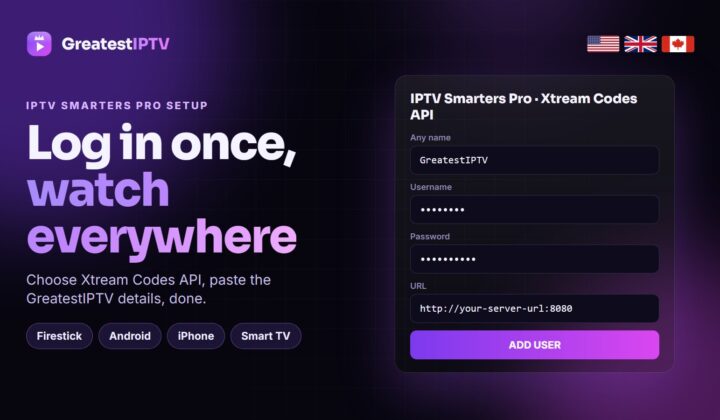
Open your activation message, install a player for your device, choose Xtream Codes API and enter the username, password and portal URL exactly as sent. The channel list loads first, the programme guide a minute or two later. That is the whole setup on every device.
Setting up an IPTV line is the part people worry about and the part that takes the least time. Once you understand what the three credentials are for, every device in the house works the same way — only the player app changes.
This guide covers what arrives when your GreatestIPTV line is created, the right player for each platform, the exact login steps, how to run more than one screen, and the short list of things to check when a single channel misbehaves.
What arrives with your line
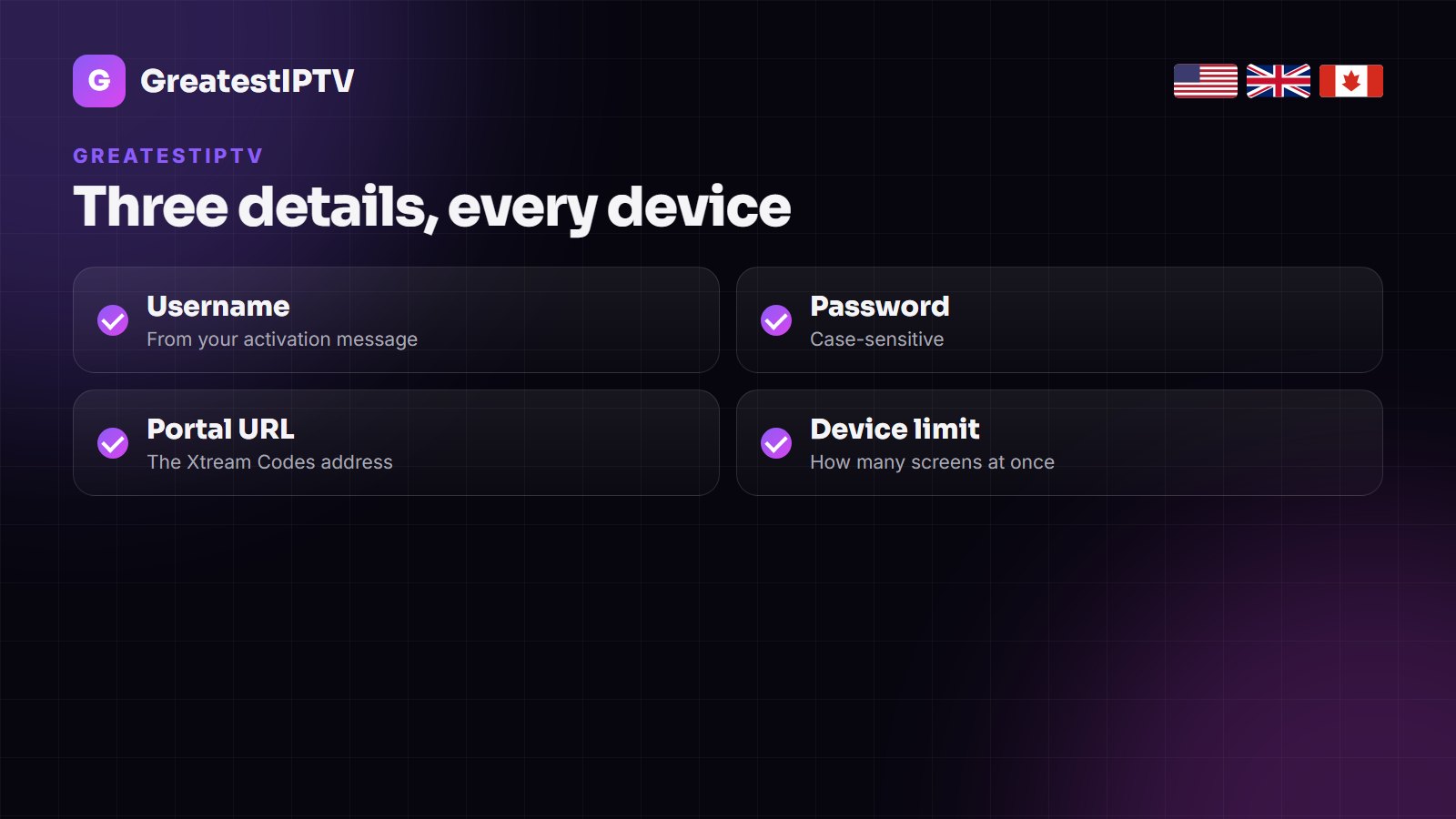
When the line is created you get an activation message containing four things. Keep it: everything below depends on it, and support will resend it on WhatsApp if you lose it.
- Username and password — case-sensitive, copy them exactly.
- Portal URL — the server address, sometimes with a port number. This is the Xtream Codes URL.
- M3U link — an alternative that works in simpler players, but carries no programme guide.
- Expiry date and your device limit — how many screens may stream at the same time.
Use the Xtream Codes details, not the M3U link, wherever the player offers both. Xtream Codes gives you the EPG, catch-up, VOD categories and series metadata; M3U gives you a flat channel list.
Pick the right player for your device
There is no single best player — there is a best player per platform. These are the ones we support and test against.
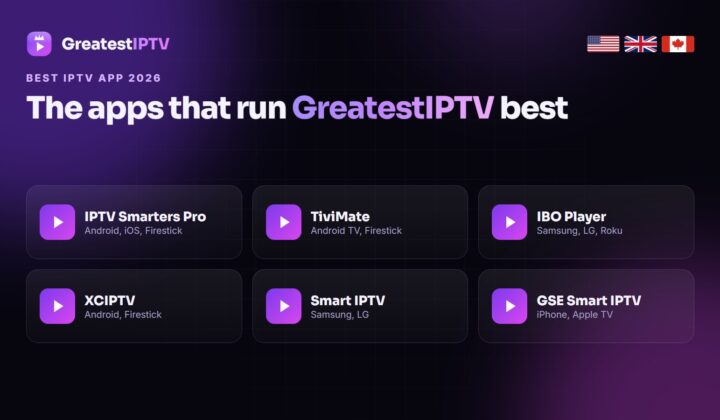
| Device | Recommended player | How it installs |
|---|---|---|
| Firestick / Fire TV | IPTV Smarters Pro or TiviMate | Sideload via the Downloader app |
| Android TV / box | TiviMate or IPTV Smarters Pro | Google Play Store |
| Samsung Tizen TV | IBO Player or Smart IPTV | Samsung Apps store |
| LG webOS TV | IBO Player or Net IPTV | LG Content Store |
| Hisense VIDAA | IBO Player | VIDAA app store |
| Android phone / tablet | IPTV Smarters Pro or XCIPTV | Google Play Store |
| iPhone / iPad | IPTV Smarters Player or GSE Smart IPTV | App Store |
| Apple TV | IPTV Smarters Player or iPlayTV | App Store (no sideloading on tvOS) |
| Windows / macOS | IPTV Smarters Pro desktop or VLC | Direct download |
Firestick and Fire TV
Amazon does not list IPTV players, so the app is sideloaded. It is a standard, safe procedure as long as the APK comes from us or the developer.
- Settings → My Fire TV → Developer options → Install unknown apps, and switch Downloader on.
- Install Downloader from the Amazon search if it is not already there.
- Open Downloader, enter the APK link from your activation message and press Go.
- Install, then delete the APK when prompted.
- Open the player, choose Login with Xtream Codes API and enter your three details.
The channel list appears first and the guide fills in behind it. On a Fire TV Stick 4K or 4K Max that takes under a minute; on the older HD Stick, give it two or three.
Samsung, LG and Hisense Smart TVs
Smart TVs need no extra hardware, but their players work differently: many are device-locked, which means you register the TV’s MAC address once.
- Install IBO Player (or Smart IPTV / Net IPTV) from your TV’s own app store.
- Open it and write down the MAC address and device key it shows.
- Send those to support on WhatsApp — we attach the line to that TV.
- Restart the app. Your channels and guide are there.
If the app shows a trial countdown, that is the player’s own licence, not your subscription. A one-off fee of a few dollars to the app developer unlocks it permanently; it is unrelated to your GreatestIPTV plan.
Phone, tablet and computer
Android
Install IPTV Smarters Pro or XCIPTV from the Play Store, choose Xtream Codes API, and enter the same three details. Nothing is device-locked, so it works immediately.
iPhone, iPad and Apple TV
Install IPTV Smarters Player or GSE Smart IPTV from the App Store and add the Xtream Codes login. tvOS does not allow sideloading, so TiviMate is not available on Apple TV — use Smarters or iPlayTV there.
Windows and macOS
The IPTV Smarters desktop build takes the same credentials. For a quick test without installing anything, open VLC, press Ctrl (or Cmd) + N, and paste the M3U link — you get channels with no guide, which is enough to confirm a line is live.
Running more than one screen
You can install the player on as many devices as you like. What is limited is how many stream at the same time, and that number is the device count on your plan.
- One-device plan: a second screen starting playback will stop the first one.
- Need two TVs at once in the same house: take a two-device plan, or add a second line.
- Sudden “connection limit reached” messages usually mean a phone in a pocket still has the app in the foreground.
The current tiers and what each includes are on the pricing page. Upgrading mid-term is prorated — message support rather than buying a second plan.
Settings worth changing once
Defaults in most players are conservative. Four changes make a visible difference on a GreatestIPTV line, and you only make them once per device.
Buffer size
In IPTV Smarters Pro the setting lives under Settings → Player Selection → Buffer size; TiviMate calls it Buffer length. Raising it from the default to around 3–5 seconds trades a slightly slower channel change for a stream that rides out short network dips instead of stuttering. On a wired device, leave it low; on Wi-Fi, raise it.
Hardware decoding
Hardware decode should be on for 4K and HEVC channels — it moves the work to the chip built for it. If a specific channel shows a green or blocky picture, that one stream is encoded in a way the device dislikes: switch that channel to software decoding and leave everything else on hardware.
EPG refresh interval
A seven-day guide across tens of thousands of channels is a large download. Set the refresh to once every 24 hours rather than on every launch, and the app opens instantly instead of pausing to rebuild the guide each time.
Hide the groups you never watch
This is the most underrated setting in any IPTV player. Hiding the country groups you do not use cuts the guide to a fraction of its size, which makes scrolling fast and the app lighter on memory — particularly on a Firestick or an older Smart TV. Nothing is lost; the groups come back whenever you unhide them.
Do these four on the main TV first. If the experience there is smooth, repeat them on the other devices; if it is not, the problem is elsewhere and the settings were not the cause.
If something will not play
Work through these in order. Between them they explain nearly every report we get.
- One channel only? Try another in the same group. A single dead channel is a source issue at our end — send us the channel name and we fix or replace it.
- Everything buffers? Test the same line on a phone over mobile data. Smooth there means the TV device or your Wi-Fi is the bottleneck, not the line.
- “Invalid credentials”? Re-type the username and password by hand — a copied space at the end is the usual culprit — and check the portal URL including the port.
- No programme guide? You are probably logged in with the M3U link. Add the Xtream Codes profile instead.
- Worked yesterday, dead today? Check the expiry date in your activation message before anything else.
When you message support, send the exact error text and the channel name. With those two things most issues are resolved in a single reply instead of four.
Other services and their setup guides
These sites run their own device walkthroughs, which are useful if you are setting up hardware we do not cover in depth here.
- Tivo8k — player app reviews and buffering diagnostics
- Nartiel8K — detailed Firestick and Smart TV tutorials
- DodoIPTV — simple setup pages and clear pricing
- PrimeFlex Media — UK-focused guides and plan comparisons
- Zoryflix — catch-up, recording and multi-screen guides
Frequently asked questions
How long does GreatestIPTV setup take?
About five minutes on a device that already has a player installed, and ten on a Firestick where the player has to be sideloaded first. The channel list loads in seconds; the programme guide can take a minute or two on a large line-up.
Should I use the Xtream Codes details or the M3U link?
Xtream Codes, wherever the player supports it. It gives you the programme guide, catch-up, VOD categories and series metadata. The M3U link is a fallback for simple players and gives you a flat channel list with no guide.
Why does my Smart TV app ask for a MAC address?
Players such as IBO Player, Smart IPTV and Net IPTV are device-locked: the line is attached to one TV. Send us the MAC address and device key the app shows and we register it, then restart the app.
Can I use one line on the TV and the phone at the same time?
Only if your plan allows more than one device. You may install the player everywhere, but simultaneous streams are capped by the plan. On a single-device plan, a second screen will interrupt the first.
Do I have to pay for the player app?
The line is what you buy from us. Some players are free (IPTV Smarters Pro, XCIPTV), some charge a small one-off developer fee (TiviMate Premium, IBO Player, Smart IPTV). Those fees go to the app developer and have nothing to do with your subscription.
What do I do if a channel stops working?
Check another channel in the same group first. If only one is affected, send us its exact name and we repair or replace that stream. If a whole group is down, say which group — that points to a specific server and is usually fixed within the hour.
Ready to set yours up?
Every plan includes a free trial, so you can run this guide end to end and watch your own channels before you pay for anything. Pick a plan on the pricing page and your activation message arrives within minutes.