Last updated: September 2026 · Written by the GreatestIPTV team, tested on a 2020 Hisense A7G running VIDAA U5, a 2023 U6K on VIDAA U7 and a US-market Hisense Google TV, each set up from a factory reset with an Xtream Codes login and again with a plain M3U playlist.
The 60-second answer
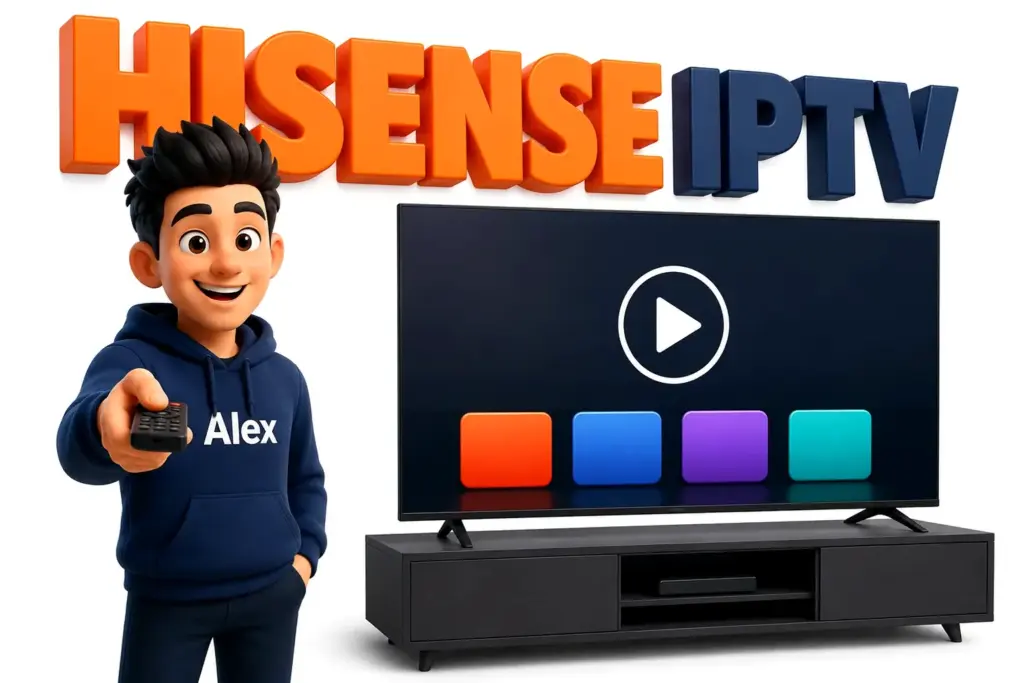
Most Hisense televisions do not run Android — they run VIDAA, Hisense’s own operating system. VIDAA has no sideloading, no Downloader app and no unknown-sources switch, so every “install the APK” tutorial you have read is useless here. What works is one of four routes: install a VIDAA IPTV player from the built-in app store, upload your playlist to a browser-based player such as SIPTV or Net IPTV, cast from a phone, or plug a $35 streaming stick into a spare HDMI port and ignore VIDAA completely.
Before anything else, find out which system your set is on. Hisense sells VIDAA sets in most of the world, but also Google TV, Roku TV and Fire TV versions in the United States and a few other markets. The badge on the remote decides which half of this guide applies to you, and getting that wrong is the reason most people waste an evening.
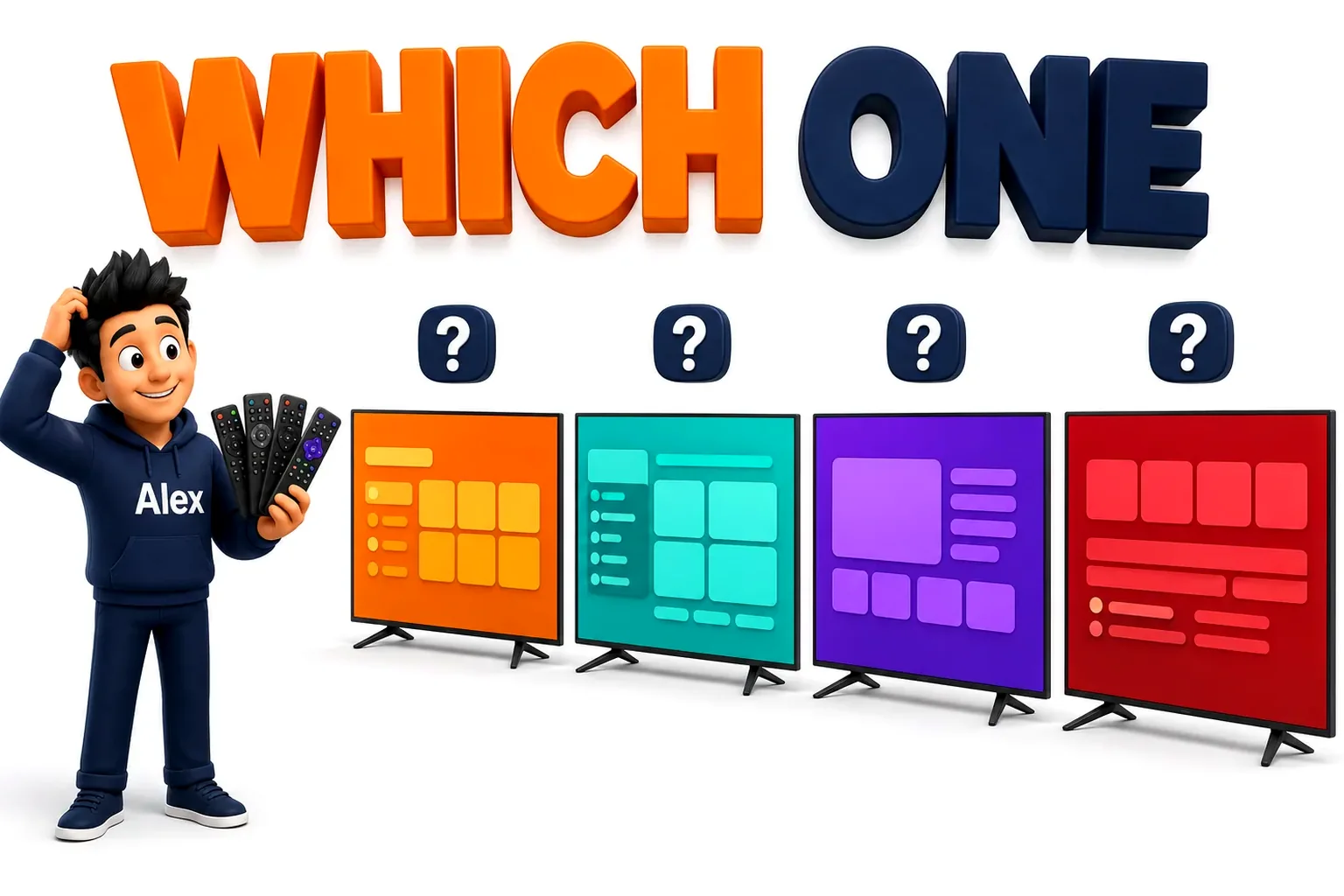
First, work out which Hisense you actually own
Hisense is unusual among the big television brands: it does not ship one platform. The same model number can arrive with a completely different operating system depending on where it was sold, and the setup routes are not interchangeable. Two minutes spent here saves an hour later.
Press the Home button and look at what appears, or turn the remote over and look at the branded shortcut buttons.
| What you see | System | Sideloading | Which route |
|---|---|---|---|
| Colourful tile launcher, a “VIDAA” logo in Settings | VIDAA U4 – U8 | No | Routes 1–4 below |
| Google TV rows, an Assistant mic button on the remote | Google TV / Android TV | Yes | Sideload any Android player |
| Purple Roku grid, a purple remote | Roku TV | No | Roku guide |
| Fire TV interface, an Alexa button | Fire TV | Yes | Firestick guide |
If you are on Google TV, Roku or Fire TV, the rest of this article is not for you. Everything below assumes VIDAA, which is what the overwhelming majority of Hisense sets in Europe, the UK, Australia, the Middle East and Africa are running.
Check your VIDAA version too. Settings → System → About → Version. VIDAA U5 and later (roughly 2020 onwards) will run every player named in this guide. U4 sets from 2018–2019 manage one or two. Anything older than that realistically needs the streaming-stick route in Route 4 — the app store on those sets is close to abandoned.
Why VIDAA behaves nothing like an Android box
Nearly every IPTV tutorial online was written for Android. Enable unknown sources, install Downloader, paste a code, done. On VIDAA that advice dies at step one, because VIDAA is a Linux-based platform of Hisense’s own making and it has never permitted sideloading on a retail television. If you have read our LG webOS guide or the Samsung Tizen one, the shape of the problem will look familiar.
Practically, that means three things, and all three catch people out:
- The famous Android players simply do not exist here. TiviMate — the app long-time IPTV users treat as the benchmark — is Android-only and always will be. So is OTT Navigator. On VIDAA you get a smaller set of players that are competent rather than brilliant, and you learn to live with whichever one your region’s store actually lists.
- The app store is a moving target. Hisense adds and removes IPTV players without notice, and the catalogue differs by country. An app your cousin has in Germany may not be listed on the identical model in the UK. An already-installed app usually keeps working, but after a factory reset you may find you cannot put it back.
- Most VIDAA players charge a one-off activation. Typically somewhere around €5.49, permanently locked to your television’s MAC address. That money goes to the app’s developer, not to your IPTV provider — which means your provider cannot waive it, refund it, or move it to a second television.
Route 1 — A player from the VIDAA app store
This is the tidiest option when your country’s store cooperates: no extra box, no second remote, one input, everything living on the television itself.
Which players are actually listed
The catalogue shifts constantly. As of September 2026, these are the ones our team could still install on a current VIDAA set in at least one major region:
| Player | Cost | Xtream login | Verdict |
|---|---|---|---|
| IPTV Smarters Pro | Free where listed | Yes | Start here if your store has it. Familiar layout, decent film and series browsing. |
| Smart IPTV (SIPTV) | €5.49 one-off | M3U only | The old reliable. You upload the playlist from a browser, not from the TV. |
| Net IPTV | €5.49 one-off | M3U only | Very stable on VIDAA. Same browser-upload idea as SIPTV. |
| Flix IPTV | €5.49 one-off | Yes | Best guide layout of the group. Worth the fee if Smarters is missing. |
| IBO Player / IBO Pro | Trial, then paid | Yes | Fast menus, weaker VOD browsing. Widely listed, which counts for a lot here. |
| Set IPTV | Paid | M3U only | Fallback when nothing else appears in your region’s store. |
Installing and logging in, in order
- Open the VIDAA app store. Press Home, scroll the launcher to the Apps row, then open the store tile. On U6 and later there is a magnifying glass at the top for search.
- Search the exact name. VIDAA search is literal and unforgiving. “smarters” finds IPTV Smarters Pro; “iptv smarter” often returns nothing at all. Try the full name first, then a single distinctive word of it.
- If nothing appears, change the store region. Settings → System → Location, or Setup → Location on older sets. Switching to a country where the app is listed, installing it, then switching back is the standard workaround — and the installed app survives the switch.
- Install it, then open it once before you go looking for your login details. Most VIDAA players display a MAC address or a device key on first launch, and you will need to copy that down.
- Choose “Login with Xtream Codes API” if the app offers it, rather than the M3U option. On VIDAA the difference is enormous: an Xtream login refreshes the channel list and the guide by itself, while an M3U file is a frozen snapshot you have to re-upload from a laptop every time your line changes.
- Type the portal exactly as your provider gave it. No trailing slash, nothing appended.
http://server.example.com:8080works;http://server.example.com:8080/frequently does not. The VIDAA on-screen keyboard is happy to add that slash for you, so check the field before you submit it. - Let the first sync finish. A full channel list plus a week of guide data is a heavy download. Two to five minutes of an apparently frozen screen is normal on a first launch, and only on the first launch.
Change the store region before you conclude an app does not exist. More than half the “my Hisense has no IPTV apps” messages our support team receives turn out to be a regional catalogue, not a missing feature. The television is fine; the store in that country simply is not listing the player.
Route 2 — SIPTV and Net IPTV, the browser-upload players
These two work in a way that confuses almost every first-time user, because you never type your playlist into the television at all. You open a website on your phone or laptop, paste the playlist URL there alongside your TV’s MAC address, and the channels appear on the television a moment later.
- Install the app from the VIDAA store and open it. A splash screen shows a MAC address shaped like
xx:xx:xx:xx:xx:xx. Write it down character by character — a mistyped MAC is why most uploads silently do nothing at all. - On your phone or computer, go to that app’s upload page, which is printed on the same splash screen.
- Paste your M3U URL into the URL field and the MAC address into the MAC field, then submit.
- Back on the television, close the app completely — not just back out of it — and reopen it. The list loads.
- After the trial period the app asks for its one-off activation, permanently tied to that MAC address.
Do not activate over Wi-Fi and then switch to Ethernet. A Hisense television has two separate network adapters with two separate MAC addresses. Activating on one and then plugging in the other looks, to the app, like a completely different television — and the licence you just paid for stops working. Decide how the set will connect, connect it that way, then activate.
The upside of these players is that they are old, boring and stable, which on a closed platform counts for a great deal. The downside is the M3U snapshot problem: nothing updates until you go back to the browser and re-upload. If your provider gives you Xtream credentials, prefer a player that accepts them.
Route 3 — Cast or mirror from a phone
Every VIDAA set from 2019 onward includes AnyView Cast, Hisense’s name for Miracast, and most 2021 and later models also handle AirPlay 2. That gives you a route that needs no installation whatsoever.
Open AnyView Cast from the input list or the Settings menu, then mirror from an Android phone or an iPhone running any IPTV player. It works, and it is by far the fastest way to judge whether a new subscription is any good before you commit to installing and paying for a player.
It is a fallback, though, not a daily setup. Mirroring re-encodes the picture on your phone and pushes it across your Wi-Fi a second time, so you lose sharpness, you add two to four seconds of delay, and the phone gets hot and drains. For a match on a Saturday afternoon it is fine. For everyday viewing it is not.
Route 4 — Add a streaming stick and forget VIDAA
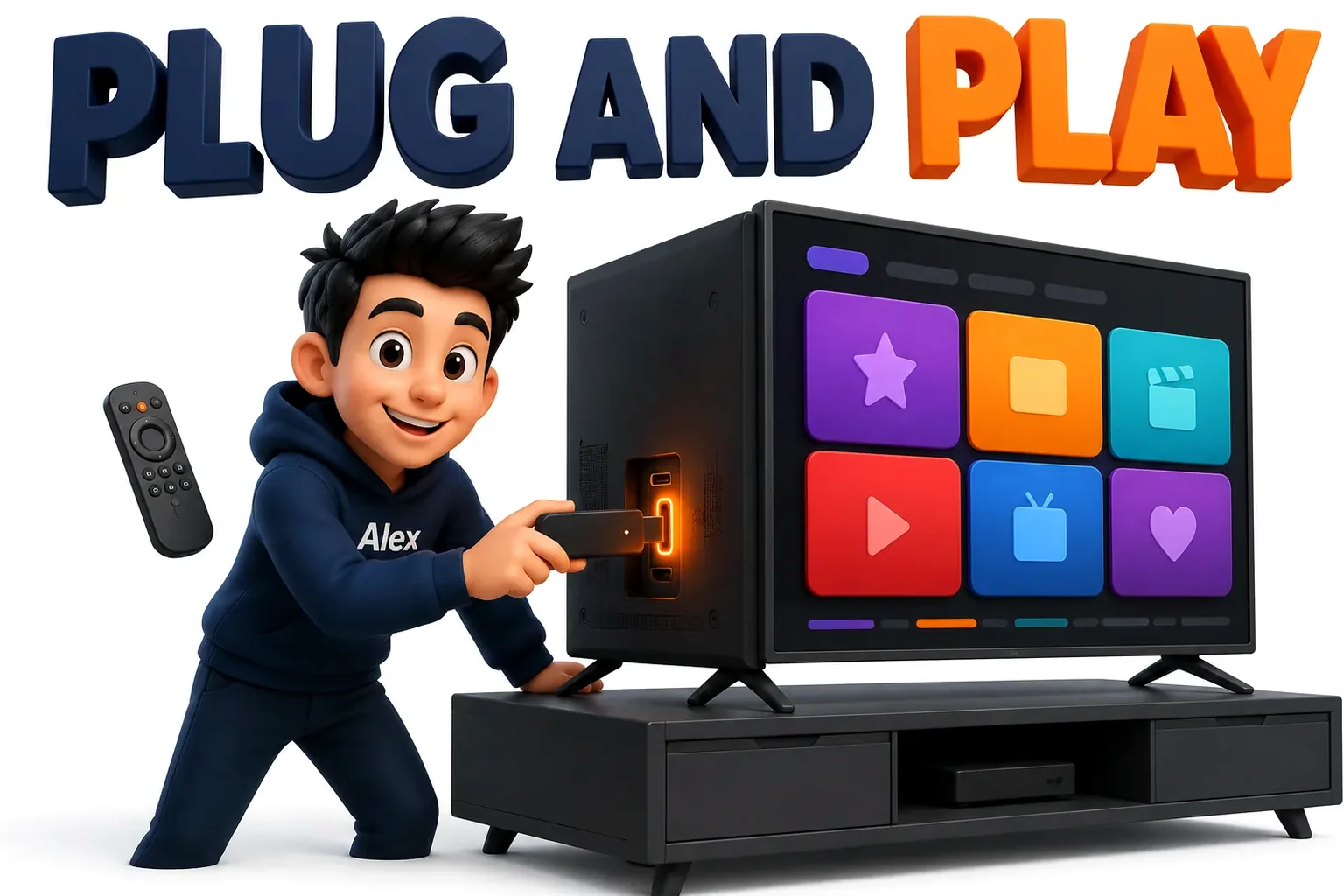
This is the recommendation our support team gives most often, and it is not a cop-out. A cheap stick in a spare HDMI port turns your Hisense into an Android device, which unlocks the entire ecosystem the television locked you out of.
| VIDAA player | Streaming stick | |
|---|---|---|
| Player choice | Whatever your region’s store lists | TiviMate, Smarters, and everything else |
| Cost | €0–5.49 one-off, per television | $35–50 once, moves between TVs |
| Guide (EPG) quality | Basic, sometimes slow | Excellent, with catch-up and recording |
| Updates | Whenever Hisense allows | Every few weeks |
| Survives a factory reset | Only if still listed | Always |
| Extra remote | No | Yes — the one real drawback |
An Amazon Fire TV Stick 4K or a Google TV device both do the job, and either will outlast whatever Hisense decides to do with its app store. If you plan to keep this television for another three or four years, that matters — and when you replace the set, the stick moves across with you.
Five Hisense settings that change the picture
Once a line is running, a handful of VIDAA defaults are actively working against you. These take five minutes and matter more than which player you picked.
- Turn off motion smoothing. Settings → Picture → Advanced → Motion Enhancement, set to Off or Low. Hisense’s interpolation is tuned for broadcast, and on a compressed IPTV stream it produces visible artefacts around fast movement — most obviously around a football.
- Switch to a plain picture mode. Standard or Filmmaker, not Dynamic or Sports. Dynamic cranks sharpness, which amplifies compression blocking rather than hiding it.
- Enable Game Mode for live sport. It bypasses most of the processing chain and cuts input lag, which in practice means less stutter on a stream the panel is already struggling to smooth.
- Use Ethernet, or at minimum 5GHz. Hisense’s built-in wireless is unremarkable, and a 4K stream on a congested 2.4GHz band will stutter no matter which player you use.
- Update the firmware. Settings → Support → System Update. VIDAA players lean on the television’s own video decoder, and stale firmware breaks HEVC on channels that were fine last month.
Six things people get wrong on a Hisense
- Following an Android tutorial. There is no Downloader, no unknown-sources toggle and no APK on VIDAA. If a guide tells you to enable one, it was not written for your television.
- Assuming the store is empty. It is regional. Change the location setting, look again, install, change back.
- Pasting an M3U when Xtream credentials exist. The M3U is a snapshot; the Xtream login is a live connection. Almost every “half my channels disappeared” ticket we receive comes from a stale M3U.
- Adding a slash to the portal URL. One character, and the login fails with a message that tells you nothing useful about why.
- Judging the service in the first two minutes. The first launch is downloading a full seven-day guide in the background. Let it finish before deciding the line is slow.
- Activating a MAC-locked player before deciding on Wi-Fi or Ethernet. Covered above, and it is the most expensive mistake on this list, because that fee is not refundable.
When it is the line, not the television
Before you burn an evening on VIDAA settings, run one test: play the same channel on your phone using the same login, over mobile data rather than your home Wi-Fi.
If the phone stutters too, the television is innocent — the problem is your provider’s server or your connection. If the phone is flawless and the TV is not, then it is the television, the player or your home network, and this guide is the right place to be digging.
That single test resolves more support tickets than every other piece of advice we give combined, and it takes ninety seconds.
More Smart TV guides
Own another brand of television as well? These cover Samsung, LG and Android TV in one place:
- Best IPTV for Smart TV in 2026 — from StrimoIPTV, focused on watching without an extra box.
- How to install IPTV on a Smart TV — IPPlayTV’s install guide for Samsung, LG and Android TV.
Frequently asked questions
Can I install TiviMate on a Hisense Smart TV?
Only if your Hisense runs Google TV, Android TV or Fire TV. TiviMate is an Android application, and a VIDAA set cannot install APKs in any supported way. On a VIDAA Hisense the only route to TiviMate is to plug in an Android-based streaming stick and run it there.
Does Hisense have an IPTV app built in?
No. VIDAA ships with catch-up and streaming services, not an IPTV player. You install one from the VIDAA app store — IPTV Smarters Pro, SIPTV, Net IPTV, Flix IPTV and IBO Player are the usual candidates — and then sign in with the credentials your provider gave you.
Why can I not find any IPTV app in my Hisense store?
The VIDAA catalogue is set by region. Go to Settings → System → Location, switch to a country where the app is listed, install it, then switch the location back. The installed app keeps working. If the set is on VIDAA U4 or older, the store may genuinely have nothing left for it, and a streaming stick is the practical answer.
Do I have to pay for SIPTV on top of my subscription?
Yes, and the two payments are unrelated. SIPTV and Net IPTV charge a one-off activation of roughly €5.49 that goes to the app developer and is locked to your television’s MAC address. Your IPTV subscription is separate. Where IPTV Smarters Pro is listed it is free, which avoids the fee entirely.
What internet speed do I need for IPTV on a Hisense TV?
Roughly 15 Mbps for HD, 25 Mbps for Full HD and 35 Mbps or more for 4K. Stability matters more than the headline number — a steady 30 Mbps over Ethernet beats a 200 Mbps connection running through congested Wi-Fi every time.
Will IPTV work on a Hisense ULED or Mini-LED?
Yes. ULED, Mini-LED and standard LED sets from the same year run identical VIDAA builds, so every route here applies. The higher-end panels are noticeably better at hiding the compression that live sports feeds suffer from, mainly thanks to their local dimming and higher refresh rates.
My channel list loads but nothing plays. What now?
A visible list with dead playback almost always means the login reached your provider but the video stream is blocked, or your line has hit its connection limit. Close the app fully, confirm nobody else is signed in on the same credentials, and try a channel from another country. If every channel fails, ask your provider to move you to a different server node. Our setup guides list the exact steps for each supported player.
Try GreatestIPTV on your Hisense tonight
75,000+ live channels and 260,000+ films and series, with an Xtream Codes login that drops straight into any VIDAA player. Plans start at $15 and every one carries a 7-day money-back guarantee.