Last updated: August 2026 · Written by the GreatestIPTV team, tested on an Nvidia Shield TV Pro, a Chromecast with Google TV 4K, a Xiaomi TV Stick 4K and two sub-$40 generic Android boxes, all on Ethernet and set up from factory with an Xtream Codes login.
The 60-second answer
An Android TV box is the best IPTV device you can buy, because it is the only one that runs TiviMate. Install a player, sign in with your Xtream Codes username, password and portal URL, and you are done. Two routes to the app: the Play Store for IPTV Smarters and similar, or the Downloader app for anything not listed — Android is the one platform where sideloading is a normal, supported action.
The one decision that matters is which box. A certified Google TV device (Chromecast, Xiaomi, Nvidia Shield) gets security updates, real hardware decoding and a working Play Store. A generic “free IPTV” Android box from a marketplace is running an ancient Android build, often with preinstalled adware, and it is the reason most people think IPTV buffers.
Why Android is the platform IPTV was built for
Samsung locks you into Tizen. LG locks you into webOS. Roku will not let a third-party video app exist at all. Android TV and its newer Google TV interface do the opposite: they let you install whatever you want, from wherever you want, with a settings toggle rather than a hack.
That single difference cascades into everything. Because developers can ship freely, the best IPTV software in existence is Android-only — TiviMate, OTT Navigator, Smarters, Perfect Player, all of it. Because you are not waiting on a TV manufacturer’s store approval, apps update in days rather than never. And because the hardware is a separate box, it is not tied to a MAC address, it survives a television replacement, and you can carry it to a hotel in a jacket pocket.
If you are choosing a device specifically for IPTV, this is the correct answer and it is not close.
Choosing the box: the part everyone gets wrong
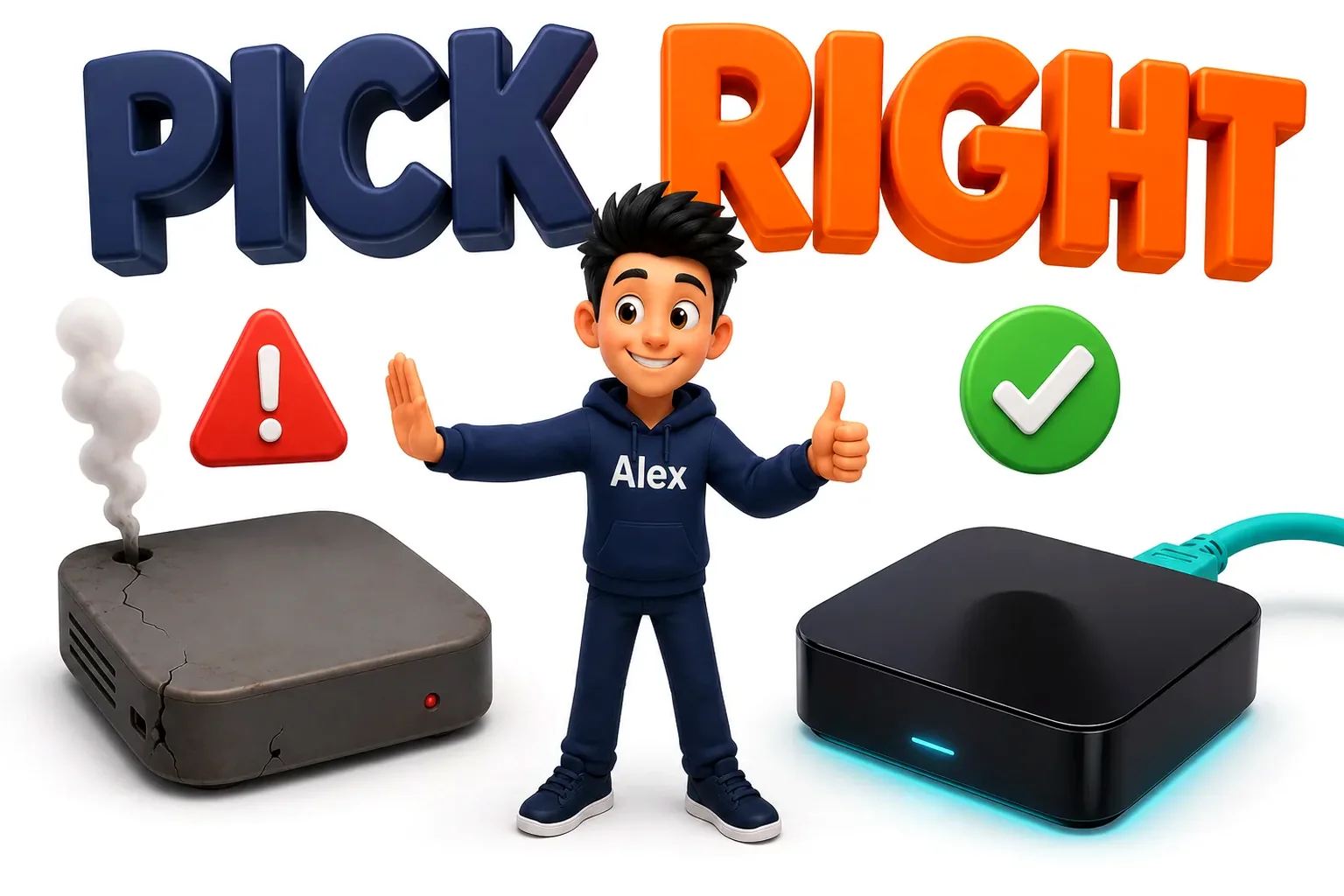
Search “IPTV box” on any marketplace and you get a wall of $35 devices promising thousands of free channels. They are all the same three or four reference designs with different plastic, and they share the same problems: an Android 7 or 9 build that stopped receiving security patches years ago, 1GB or 2GB of RAM, no Widevine L1 certification, a Wi-Fi chip that cannot hold a 4K stream, and — often enough that you should assume it — preinstalled software you did not ask for.
| Device | Price | Verdict for IPTV |
|---|---|---|
| Nvidia Shield TV Pro | ~$200 | The best there is. 3GB RAM, Ethernet, plays every codec, still updated after years. Overkill unless you also game or run Plex. |
| Chromecast with Google TV 4K | ~$50 | The sweet spot. Certified, updated, fast enough. Only 8GB of storage — you will manage it, but it is fine. |
| Xiaomi TV Stick / Box 4K | ~$60 | Excellent value. The Box version adds an Ethernet port, which is worth the difference on its own. |
| Onn 4K Pro (Walmart) | ~$50 | Genuinely good. Ethernet, 32GB storage, certified Google TV. The bargain of the category. |
| Generic “free IPTV” box | $30 – $45 | Avoid. Old Android, no updates, weak Wi-Fi, frequently bundled with adware. |
Buy the version with an Ethernet port. It is the single highest-value upgrade in IPTV. A wired connection removes jitter, packet loss and Wi-Fi congestion in one move, and those three things cause the overwhelming majority of buffering complaints. If a box costs $10 more for an Ethernet socket, pay the $10.
Route 1 — Installing from the Play Store
Some IPTV players are listed on the Play Store, and if the one you want is there, this is a two-minute job.
- Open the Play Store from the launcher and search the exact app name.
- Install, then open it once. Some players show a device ID on first launch that you may need later.
- Choose the Xtream Codes login over the M3U option wherever the app offers both.
- Enter username, password and portal URL. No trailing slash on the URL, nothing appended after the port number.
- Let the first sync run to completion. Two to four minutes on a large line while it pulls the channel list, categories, VOD library and guide data.
IPTV Smarters Pro, XCIPTV and Flix IPTV all come and go from the Play Store. TiviMate is listed — but the sideload route below is still worth knowing, because Play Store availability changes by country and by month.
Route 2 — Sideloading with Downloader
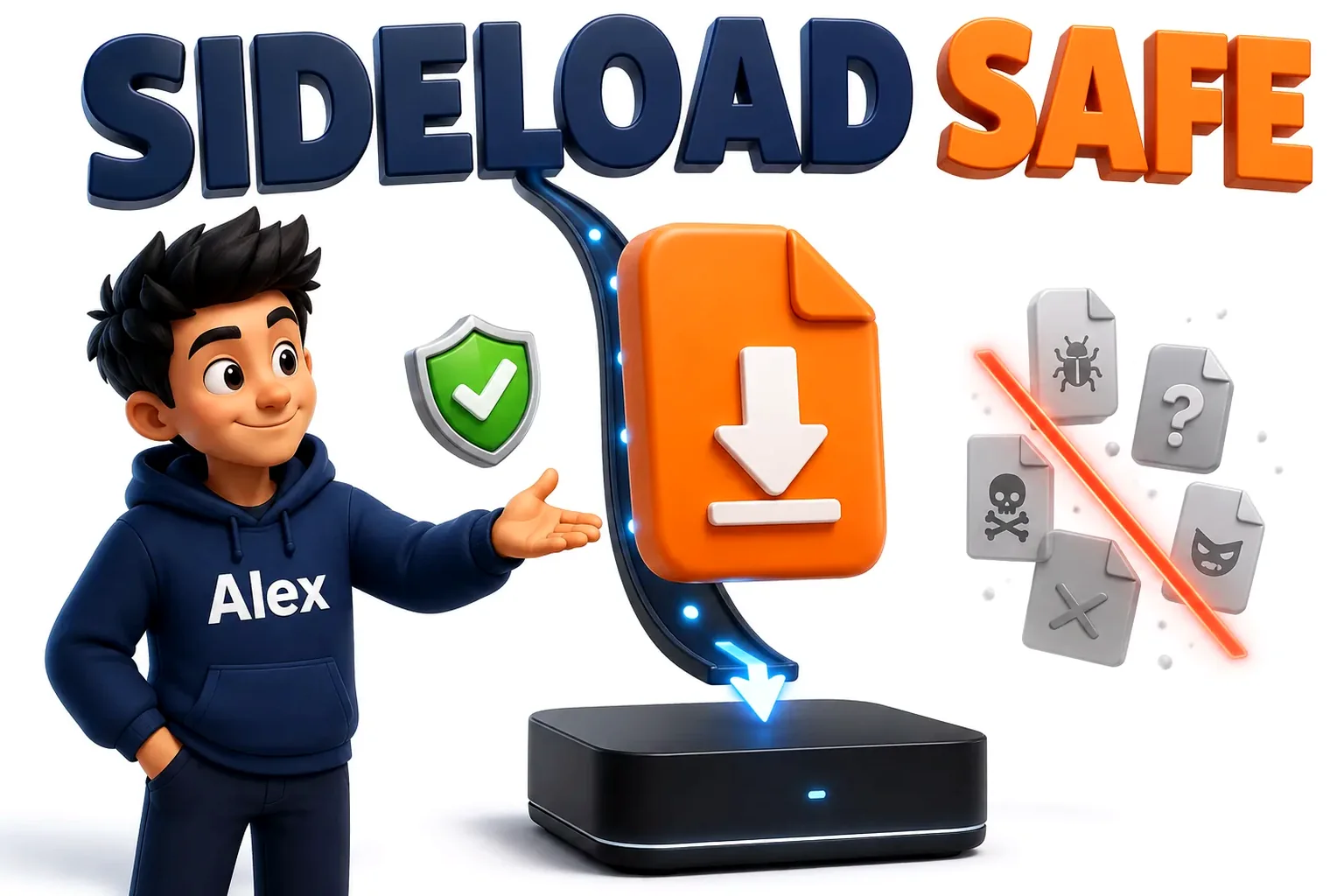
This is the route that makes Android worth owning, and it is entirely legitimate: you are installing an app from its developer’s own site rather than from Google’s shop.
- Install Downloader (by AFTVnews) from the Play Store. It is a simple browser plus file installer.
- Allow unknown sources. Settings → Apps → Security & restrictions → Unknown sources → turn on the switch for Downloader specifically, not globally.
- Open Downloader and type the developer’s URL in the address box. Only ever use the developer’s official domain — never an APK aggregator, and never a link from a comment section.
- Download the APK, then choose Install when the prompt appears.
- Delete the APK file when Downloader offers to. It has done its job and it is only taking up storage.
- Open the player and sign in with your Xtream details exactly as above.
Where the APK came from matters more than anything else in this guide. A sideloaded APK runs with the same permissions as any other app. Downloading a player from a random file host is how people end up with a box that shows ads on the home screen and phones home constantly. Developer’s own site, every single time — and if a “modded” or “pre-loaded” version is on offer, that is the one to avoid hardest.
Setting up TiviMate, properly
TiviMate is why people choose Android. It is the closest thing IPTV has to a real television experience — a proper EPG grid, channel groups you control, recording, catch-up and multi-view. The free version is usable; the Premium unlock (a one-off payment or a yearly one) adds recording, multiple playlists and catch-up.
- Add a playlist → Xtream Codes. Enter your portal, username and password. TiviMate will report how many channels and how many days of EPG it found — that number is your first confirmation the line is healthy.
- Skip the group selection screen for now. Import everything, then prune later. It is far easier to hide groups than to hunt for one you excluded.
- Settings → Playback → Decoder: Hardware. Software decoding is the fallback for a channel that will not play, not the default. Leave it on Hardware unless a specific channel forces you to change it.
- Settings → Playback → Buffer size: Medium. Large adds several seconds before a channel starts. Medium is the right compromise on a decent connection.
- Settings → EPG → Update interval: 12 hours. More frequent updates hammer the provider’s server and gain you nothing. If the guide comes up blank or mistimed, our EPG troubleshooting guide works through the five causes in order.
- Build your own channel groups. Settings → Channel groups → create “Sport”, “News”, “Kids”. Ten minutes here turns a 20,000-channel line into something a family can actually use, and it is the difference between a service people love and one they complain about.
Six settings that stop a cheap box stuttering
If you already own a budget box and are not replacing it, these are the changes that get the most out of it — in the order we would apply them.
- Plug in Ethernet. Everything else on this list combined does less than this one change.
- Set the display to 1080p 60Hz manually. Settings → Display → Resolution. Leaving it on Auto makes the box renegotiate HDMI every time a stream changes resolution, which produces a black screen for two seconds mid-programme.
- Turn off the animations. Developer options → Window, Transition and Animator scale → all set to Off. On a 2GB box this is a noticeable speed gain in menus.
- Uninstall everything you do not use. Preinstalled apps sync in the background and eat the RAM your player needs for its buffer.
- Clear the player’s cache monthly. Settings → Apps → your player → Clear cache. EPG data accumulates, and on an 8GB device a full disk causes stuttering that looks exactly like a network problem.
- Reboot weekly. Cheap boxes leak memory. A scheduled restart genuinely helps; it is not folk wisdom.
If buffering persists after all six, the pattern is worth diagnosing properly — our buffering guide walks through isolating whether the cause is the device, the network or the provider, and the logic applies to any Android device.
When one channel refuses to play and the rest are fine
This is a different problem from buffering and it needs a different fix. If 19,999 channels work and one does not, your line is healthy and your network is healthy — what you have hit is a codec the box cannot decode.
Providers do not encode every channel the same way. Most are H.264, but 4K and many premium sports feeds use HEVC, and a small number use AV1. A cheap box with no hardware HEVC support will show a black screen with audio, or audio with a frozen first frame, on exactly those channels and nowhere else.
Work through it in this order. Switch that channel’s decoder to Software in your player’s playback settings — if it plays, you have confirmed a hardware decoding gap, at the cost of some CPU load. If it still fails, copy the channel’s stream URL into VLC on a phone or laptop: playing there proves the stream is alive and the box is the limitation, while failing there points back at the provider. Finally, ask whether an H.264 version of that channel exists — most providers carry both, usually labelled HD and FHD, and switching costs you nothing.
Fire TV, Google TV and plain Android TV
All three are Android underneath, which is why the same APKs run on all of them, but they differ in ways that matter when you are buying.
| Google TV | Fire TV | Plain Android TV | |
|---|---|---|---|
| App store | Play Store | Amazon Appstore | Play Store |
| Sideloading | Yes, via Downloader | Yes, via Downloader | Yes, via Downloader |
| Home screen ads | Recommendations | Heavy, unavoidable | Minimal |
| Updates | Regular | Regular | Depends on maker |
| Best for IPTV | Yes — the default recommendation | Yes, if the ads do not bother you | Only on a known-good box |
For most people a Chromecast with Google TV or an Onn 4K Pro is the right purchase. A Firestick is equally capable and often cheaper on sale; our Firestick installation guide covers that path step by step.
Six things people get wrong on Android boxes
- Buying a box advertised with free channels. That content is not licensed and it stops working within weeks. You are paying for hardware chosen to be as cheap as possible.
- Enabling unknown sources globally. Turn it on for Downloader alone. Then no other app can silently install anything.
- Leaving the buffer on Large. It adds seconds to every channel change. Medium unless you have a genuinely unstable connection.
- Importing all 20,000 channels and never grouping them. Ten minutes building groups makes the whole service usable.
- Leaving the display on Auto resolution. The two-second HDMI black screen mid-programme is this setting, not your provider.
- Blaming buffering on the line before trying Ethernet. Most reports we receive resolve with a cable.
When it is the line, not the box
Before you rebuild the box, run the test: play the same channel on your phone using the same login, over mobile data rather than home Wi-Fi.
If the phone stutters too, the box is innocent — the problem is your provider’s server or your internet connection. If the phone is perfect and the box is not, the fault is the device, the app or your home network, and the settings above are where to look.
Two minutes of testing beats an evening of guessing, every time.
Still choosing a box?
- StrimoIPTV’s honest guide to the best IPTV boxes compares the Firestick, NVIDIA Shield, Onn and the cheaper Android boxes on price and how well they play IPTV.
- DrogonTV’s best IPTV for Android guide covers the Android phone, tablet and TV box setup side by side.
Frequently asked questions
What is the best Android box for IPTV?
The Nvidia Shield TV Pro if budget is no object, and a Chromecast with Google TV 4K or an Onn 4K Pro for everyone else. What matters is a certified device that still receives updates, has at least 2GB of RAM and ideally an Ethernet port. Avoid unbranded boxes advertised with free channels included.
Is sideloading an IPTV app on Android TV safe?
Yes, provided the APK comes from the developer’s own website. Sideloading is a normal supported action on Android and the app runs with the same permissions as any Play Store install. The risk is entirely in the source: APK aggregator sites and “modded” builds are where adware and trackers come from.
Do I need TiviMate Premium?
Only for recording, catch-up and running more than one playlist. The free version plays live TV with a full EPG and custom groups, which is all most people use. Try it free for a week first — if you never reach for recording, the free build is genuinely enough.
Why does my Android box buffer when my internet is fast?
Almost always Wi-Fi rather than bandwidth. A cheap box’s wireless chip drops packets on a congested band, and IPTV has no error correction to hide that, so it appears as buffering. Plug in Ethernet first. If that is impossible, move to the 5GHz band and get the box within line of sight of the router.
Can I use one subscription on the box and my phone at the same time?
That depends on how many simultaneous connections your plan includes. A single-connection line will disconnect the first device when the second signs in. If two people watch at once in your household, buy a multi-connection plan — it is far cheaper than a second subscription.
What internet speed do I need?
About 15 Mbps for HD, 25 Mbps for Full HD and 35 Mbps or more for 4K. Consistency matters more than the headline number: a steady 30 Mbps over Ethernet outperforms a 300 Mbps connection over congested Wi-Fi.
My channel list loads but nothing plays. What now?
The login reached your provider but the video stream is blocked or your line has hit its connection limit. Force-stop the app, confirm nobody else is using the same credentials, and try a channel from another country. If everything fails, ask your provider to move you to a different server node. Our setup guides cover the exact steps for each supported player.
Run GreatestIPTV on your Android box tonight
75,000+ live channels and 260,000+ films and series, with an Xtream Codes login that drops straight into TiviMate, Smarters or any Android player. Plans start at $15 with a 7-day money-back guarantee.