Last updated: August 2026 · Written by the GreatestIPTV team, tested on a 2018 LG UK6300, a 2021 C1 OLED and a 2024 C4, all wired over Ethernet and set up from a factory reset with both an Xtream Codes login and a plain M3U playlist.
The 60-second answer
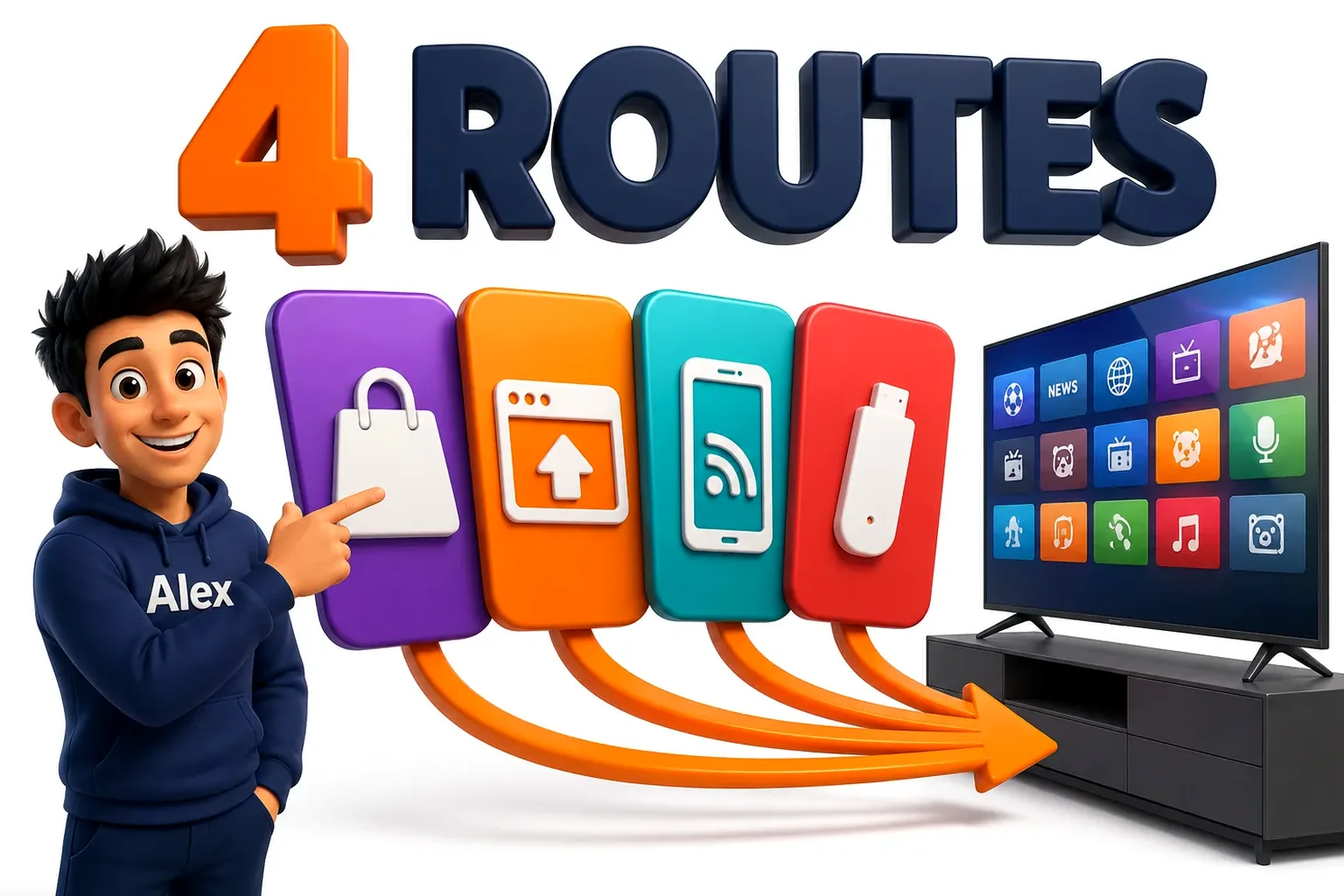
LG televisions run webOS, not Android. That is the whole story. There is no APK, no Downloader, no unknown-sources switch, so the four setups that genuinely work are: install a webOS IPTV player from the LG Content Store, upload your playlist to a browser-based player such as SIPTV or Net IPTV, share the screen from a phone, or plug a cheap streaming stick into a spare HDMI port and forget webOS exists.
If you only take one thing from this guide: log in with an Xtream Codes username, password and portal URL rather than pasting an M3U link. On webOS the difference is enormous — an Xtream login refreshes the channel list and the guide by itself, while an M3U file is a frozen snapshot you have to re-upload from a laptop every time your line changes.
Why an LG TV behaves nothing like an Android box
Nearly every IPTV tutorial online was written for Android. Install the APK, paste the portal, done. On an LG that advice falls apart at step one, because LG has shipped webOS on its televisions since 2014 and has never allowed sideloading on a retail set.
webOS is fast, its Magic Remote pointer is genuinely useful for scrolling a 20,000-channel list, and it is completely sealed. Everything you install arrives through the LG Content Store, and LG decides what is listed there. Three consequences follow, and all three catch people out:
- The famous Android players do not exist here. TiviMate, the app most long-time IPTV users treat as the benchmark, is Android-only and always will be. So is OTT Navigator. What you get on webOS is a smaller set of players that are competent rather than brilliant.
- Listings come and go. LG has quietly pulled IPTV players from its store more than once. An installed app usually keeps working, but after a factory reset you may find you cannot put it back.
- Most webOS players charge a one-off activation. Typically around €5.49, locked to your television’s MAC address. That money goes to the app developer. Your IPTV provider cannot waive it, refund it or transfer it to a second TV.
Check which webOS you are on before anything else. Settings → All Settings → General → About This TV. Anything from webOS 4.0 upward (2018 and later) installs every player in this guide. webOS 3.x sets from 2016–2017 can only manage one or two, and a 2014–2015 set realistically needs the streaming-stick route.
Route 1 — A webOS player from the LG Content Store
This is the tidiest setup when it works: no extra box, no second remote, everything on the television itself.
Which players are actually listed
The store changes, but as of August 2026 these are the ones our team could still install on a current LG:
| Player | Cost | Xtream login | Verdict |
|---|---|---|---|
| IPTV Smarters Pro | Free | Yes | Start here. Familiar layout, solid VOD browsing, no activation fee. |
| Net IPTV | €5.49 one-off | M3U only | Very stable. You upload the playlist from a browser, not the TV. |
| Smart IPTV (SIPTV) | €5.49 one-off | M3U only | The old reliable. Same browser-upload idea as Net IPTV. |
| Flix IPTV | €5.49 one-off | Yes | Best EPG of the group. Worth the fee if Smarters misbehaves. |
| IBO Player | Trial, then paid | Yes | Quick menus, weaker film and series browsing. |
Installing and logging in, in order
- Open the LG Content Store. Press Home, then pick the store tile from the launcher ribbon along the bottom of the screen.
- Search the exact name. webOS search is literal. “smarters” finds IPTV Smarters Pro; “iptv smarter” usually returns nothing at all.
- Install it, then open it once before you go hunting for your login details. Most webOS players display a MAC address or a device key on first launch and you will need to copy it down.
- Pick “Login with Xtream Codes API” if the app offers it, not the M3U option.
- Type the portal exactly as your provider gave it. No trailing slash, nothing appended.
http://server.example.com:8080works;http://server.example.com:8080/frequently does not. The webOS on-screen keyboard likes to add that slash for you, so check it. - Let the first sync finish. A full channel list plus a week of guide data is a heavy download. Two to four minutes of an apparently frozen screen is normal on the first launch, and only the first launch.
Use the Magic Remote pointer for the login screen. Typing a long portal URL with the directional pad is miserable. Wave the remote to bring up the pointer and click the characters directly — it cuts the job to about a quarter of the time and removes most typos, which are the single biggest cause of a failed first login.
Route 2 — Net IPTV and SIPTV, the browser-upload players
Net IPTV and Smart IPTV work in a way that confuses almost every first-time user, because you do not type your playlist into the television at all. You open a website on your phone or laptop, paste the playlist URL there alongside your TV’s MAC address, and the channels appear on the TV a moment later.
- Install the app from the LG Content Store and open it. A splash screen shows a MAC address shaped like
xx:xx:xx:xx:xx:xx. Write it down character by character — a mistyped MAC is the reason most uploads silently do nothing. - On your phone or computer, go to that app’s upload page.
- Paste your M3U URL into the URL field and the MAC address into the MAC field, then submit.
- Back on the television, close the app completely — not just back out of it — and reopen it. The list loads.
- After the trial period the app asks for its one-off activation, permanently tied to that MAC address.
Do not activate over Wi-Fi and then switch to Ethernet. An LG television has two separate network adapters with two separate MAC addresses. Activating on one and then plugging in the other looks to the app like a completely different TV, and the licence you just paid for stops working. Decide how the TV connects, then activate.
Route 3 — Screen share from a phone or laptop
Every LG from 2017 onward supports Miracast, which LG calls Screen Share, and most from 2019 onward also handle AirPlay 2. That gives you a fallback that needs no installation at all.
Open Screen Share on the TV from the Home Dashboard, then mirror from an Android phone or an iPhone running any IPTV player. It works, and it is the fastest way to judge whether a new subscription is any good before you commit to installing anything.
It is a fallback, though, not a daily setup. Mirroring re-encodes the picture on your phone and pushes it across Wi-Fi a second time, so you lose sharpness, you add two to four seconds of delay, and your phone gets hot and drains. For a football match on a Saturday afternoon it is fine. For everyday viewing it is not.
Route 4 — Add a streaming stick and ignore webOS
This is the recommendation our support team gives most often, and it is not a cop-out. A $35 stick in a spare HDMI port turns your LG into an Android device, which unlocks the entire ecosystem the television itself locked you out of.
| webOS player | Streaming stick | |
|---|---|---|
| Player choice | Five apps, all mediocre | TiviMate, Smarters, and everything else |
| Cost | €0 – €5.49 one-off | $30 – $50 for the hardware |
| Menu speed | Slow past ~10,000 channels | Fast at any list size |
| Survives a factory reset | Only if still listed in the store | Always |
| Moves to a new TV | No — MAC locked | Yes, unplug and carry it |
| Recording & catch-up | Rare, usually broken | Full support in TiviMate |
An Amazon Fire TV Stick 4K is the usual choice because it is cheap and sideloading on it is trivial. Any Google TV device does the same job, and our Android TV box guide walks through that setup end to end. If you go the Amazon route, our Firestick buffering guide covers the settings that keep one running smoothly.
Which route suits which LG generation
LG’s webOS builds have shifted enough over a decade that the same app behaves differently depending on when the set was made. This is what we found across three generations of hardware.
| Model years | webOS | What to expect |
|---|---|---|
| 2014 – 2015 LB, UF, EG series |
1.x – 2.x | Almost nothing current will install. Buy the stick; do not spend an evening on it. |
| 2016 – 2017 UH, UJ, B7, C7 |
3.x | SIPTV and Net IPTV usually still install. HEVC is patchy — ask your provider for the H.264 versions of your main channels. |
| 2018 – 2020 UK, SM, B8, C9, CX |
4.0 – 5.0 | The compatibility sweet spot. Everything installs. Menus get sluggish past roughly 10,000 entries, so browse by category rather than one giant list. |
| 2021 – 2023 C1, C2, C3, UQ |
6.0 – 23 | Fast, reliable, full HEVC and 4K HDR. Staying on webOS genuinely makes sense here. |
| 2024 – 2026 C4, G4, and later |
24+ | Great hardware, tighter store. Install your player early and never factory-reset without first checking it is still listed. |
To read your model year, look at the second character group on the sticker behind the panel. In OLED55C1PUB the C1 is the 2021 C-series; in 55UK6300 the UK is 2018.
The four LG settings that change how IPTV looks
An IPTV stream is not a Blu-ray. It arrives compressed, and LG’s default processing is tuned for clean sources, which means it often makes a compressed stream look worse rather than better.
- Turn TruMotion off. Picture → Advanced → Clarity. LG’s motion interpolation invents frames between real ones, and on a 25fps sports feed it produces smearing around fast movement plus about 80ms of extra input lag.
- Set Energy Saving to Off. General → Energy Saving. Left on Auto it dims the panel during dark scenes, which readers routinely report to us as “the stream went dark”.
- Use the Game or Filmmaker preset for live sport. Both bypass most of the processing chain. The picture looks slightly flatter and moves far more cleanly.
- Reduce, do not disable, Noise Reduction. Set it to Low. Compression artefacts are not noise, and aggressive noise reduction on a compressed stream smears fine detail like grass and crowd texture into mush.
Six things people get wrong on an LG
- Trying to sideload an APK. There is no retail method. Developer Mode exists, expires every 24 hours, requires an LG developer account, and will not run an Android APK anyway — webOS apps are a different format entirely.
- Leaving the trailing slash on the portal URL. The webOS keyboard adds it automatically. Delete it before you hit connect.
- Blaming the provider for the activation fee. The €5.49 belongs to the app developer, not your IPTV supplier, who has no way to touch it.
- Judging the service in the first two minutes. The first launch is downloading a full seven-day EPG in the background. Let it finish before you decide the line is slow.
- Running an old firmware. Settings → Support → Software Update. webOS players lean on the system video decoder, and stale firmware breaks HEVC on channels that were fine last month.
- Staying on 2.4GHz Wi-Fi. LG’s built-in wireless is unremarkable, and a 4K stream on a congested 2.4GHz band will stutter no matter which app you use. Ethernet if you can; 5GHz if you cannot.
When it is the line, not the television
Before you burn an evening on TV settings, run this one test: play the same channel on your phone using the same login, over mobile data rather than your home Wi-Fi.
If the phone stutters too, the television is innocent — the problem is your provider’s server or your connection. If the phone is flawless and the TV is not, then it is the TV, the app or your home network, and this guide is the right place to be digging.
That single test resolves more support tickets than every other piece of advice we give combined.
Further reading
- StrimoIPTV’s guide to IPTV on a Smart TV spells out what each TV platform can and cannot do with IPTV — useful before you pay for a player licence.
- iMaxIPTV’s best IPTV player test compares seven players, including the ones that run on webOS.
Frequently asked questions
Can I install TiviMate on an LG Smart TV?
No. TiviMate is an Android application and LG televisions run webOS, which cannot install APKs in any supported way. The only route to TiviMate on an LG screen is to plug in an Android-based streaming device such as a Fire TV Stick or a Google TV box and run it there.
Why did my IPTV app vanish from my LG TV?
LG removes IPTV players from its Content Store from time to time, and a factory reset or a major firmware update can clear apps that are no longer listed. If the app has been delisted you cannot reinstall it. That risk is the strongest practical argument for the streaming-stick route.
Do I have to pay for Net IPTV on top of my subscription?
Yes, and the two payments are unrelated. Net IPTV and SIPTV charge a one-off activation of roughly €5.49 that goes to the app developer and is locked to your TV’s MAC address. Your IPTV subscription is separate. IPTV Smarters Pro is free, so choosing that player avoids the fee entirely.
What internet speed do I need for IPTV on an LG TV?
Roughly 15 Mbps for HD, 25 Mbps for Full HD and 35 Mbps or more for 4K. Stability matters more than the headline figure — a steady 30 Mbps over Ethernet beats a 200 Mbps connection running through congested Wi-Fi every time.
Is there a free IPTV app for LG webOS?
IPTV Smarters Pro is free to install, and IBO Player offers a trial. Both are players rather than content, so you still need a subscription line from a provider to sign in with.
Will IPTV work on an LG OLED?
Yes. OLED and LED sets from the same year run identical webOS builds, so every route in this guide applies. C-series and G-series OLEDs are among the best IPTV screens you can buy, mainly because their near-instant pixel response hides the motion judder that compressed sports feeds suffer from.
My channel list loads but nothing plays. What now?
A visible list with dead playback almost always means the login reached your provider but the video stream is blocked or your line has hit its connection limit. Close the app fully, confirm nobody else is using the same credentials, and try a channel from another country. If every channel fails, ask your provider to move you to a different server node. Our setup guides list the exact steps for each supported player.
Try GreatestIPTV on your LG tonight
75,000+ live channels and 260,000+ films and series, with an Xtream Codes login that drops straight into any webOS player. Plans start at $15 and every one carries a 7-day money-back guarantee.